Weak passwords are one of the easiest ways for hackers to break into your accounts. Every year, millions of people lose access to their email, banking, and social media because they used simple passwords like "123456" or "password123." The good news? Creating a strong, secure password takes just seconds with the right tool.
A password generator creates random, complex passwords that are nearly impossible to guess or crack. Instead of relying on your pet's name or birthday, you get a truly unique password for every account. This simple step dramatically improves your online security.
Whether you're securing your email, protecting your website admin panel, or setting up accounts for your team, a random password generator is your first line of defense. In this guide, you'll learn what makes passwords strong, how to use ToolPoint's Password Generator, and simple ways to manage passwords without the headache.
Let's make your accounts safer--starting right now.
What Makes a Password "Strong"
A strong password protects your accounts from brute-force attacks, dictionary attacks, and educated guessing. Here's what actually matters:
Length matters most. A 16-character password with simple patterns is harder to crack than an 8-character password with symbols. Every extra character increases the time needed to crack your password exponentially. Aim for at least 12 characters for standard accounts and 16+ for banking or admin access.
Randomness and uniqueness win. Strong passwords avoid predictable patterns like "Abcd1234!" or keyboard sequences like "qwerty123." Each account should have a completely different password. If one site gets hacked, your other accounts stay safe.
Avoid personal information. Don't use your name, birthday, pet names, or anything someone could find on your social media. Hackers often try these first. A truly random password generator eliminates this risk entirely by creating passwords that have no connection to your life.
Password Length Guide
Different accounts need different levels of security. Here's a practical guide:
| Use Case | Recommended Minimum Length | Notes |
|---|---|---|
| Email accounts | 16 characters | Your email resets other passwords--protect it well |
| Banking & financial | 16+ characters | Use maximum length allowed; enable 2FA |
| Social media | 12-14 characters | Prevents account takeovers and impersonation |
| Admin accounts (website/CMS) | 18+ characters | Critical for site owners; change quarterly |
| Streaming services | 12 characters | Prevents unauthorized use and profile hijacking |
| Shopping sites | 12 characters | Protects payment info and order history |
| Work/professional accounts | 16+ characters | Often contains sensitive company data |
The longer, the better. Most security tools recommend using the maximum length a site allows.
Password Generator vs "Making One Up"
Here's the truth: humans are terrible at creating random passwords.
Why humans repeat patterns. When we create passwords, we follow patterns without realizing it. We capitalize the first letter, add a number at the end, maybe throw in an exclamation point. We use words we can remember, substitute "3" for "E" or "@" for "A," and think we're being clever. Hackers know these patterns. Their software checks millions of common variations in seconds.
Why generated passwords reduce risk. A random password generator creates truly random combinations with no human patterns. Instead of "Summer2024!" (which a computer can crack in minutes), you get something like "7mK#9pLx2nQv$5wR"--a password that would take centuries to crack with current technology.
Generated passwords eliminate:
- Predictable substitutions (P@ssw0rd)
- Personal information (JohnDoe1985)
- Dictionary words (correct-horse-battery-staple without modifications)
- Repeated patterns across accounts
The only downside? You need to store them properly. That's where password managers come in, which we'll cover in the storage section.
How to Use ToolPoint's Password Generator
Creating a secure password takes about 30 seconds. Here's the step-by-step process:
Step 1: Visit ToolPoint's Password Generator in your browser.
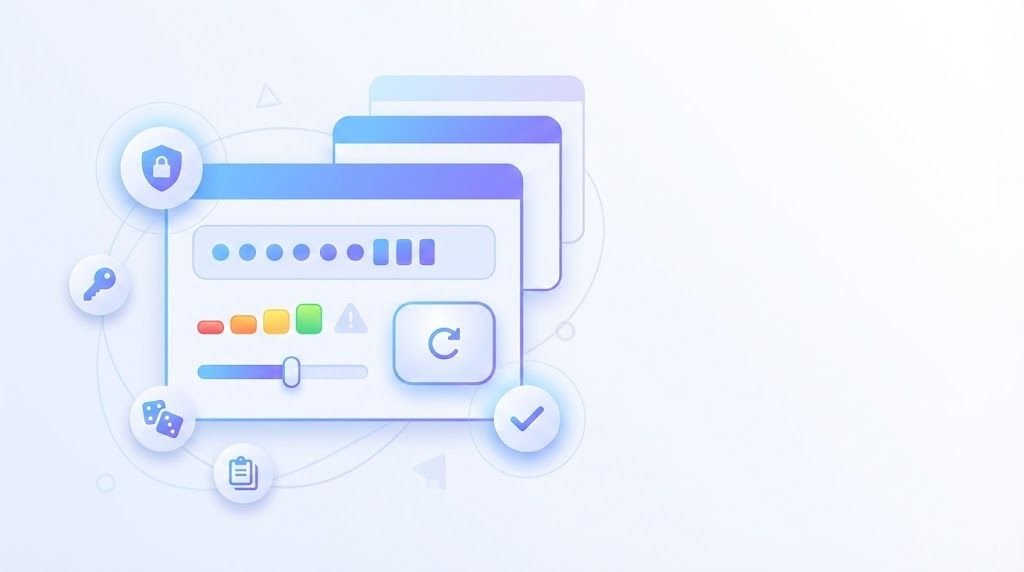
Step 2: Choose your password length. Most generators let you select between 8-32 characters. Start with 16 characters for everyday accounts, 20+ for high-security accounts.
Step 3: Enable uppercase letters. This adds variety (A-Z) to your password, increasing possible combinations.
Step 4: Enable lowercase letters. Combined with uppercase, you now have 52 possible letter characters.
Step 5: Enable numbers (0-9). This adds 10 more possible characters to each position.
Step 6: Enable symbols (!@#$%^&*). These dramatically increase password strength. Some older systems don't accept all symbols, so you might need to regenerate if a site rejects it.
Step 7: Click "Generate" to create your password. The tool instantly creates a random combination.
Step 8: Copy the password using the copy button (don't manually type it--you might make a mistake).
Step 9: Paste it directly into the password field on the site you're securing. Then store it in your password manager immediately.
Most password generators show you the password strength in real-time. If you need to check the character count of a passphrase you're creating, you can use the Word Counter tool to verify length.
Passphrases: The Easy-to-Remember Alternative
Not every password needs to be a random string of characters. Passphrases offer a middle ground between security and memorability.
What's a passphrase? A passphrase is a longer sequence of random words, numbers, and symbols that's easier for humans to remember but still hard for computers to crack. The key is length and randomness in word selection.
Passphrase patterns (not actual passwords):
- [Random-Word]-[Random-Word]-[Random-Word]-[2-digits]-[symbol] Example structure: "turtle-mountain-coffee-47!"
- [Unusual-Word][Unusual-Word][Number][Symbol] Example structure: "VelvetCascade92#"
- [Word]-[Number]-[Word]-[Symbol]-[Word] Example structure: "lamp-384-cloud-%-forest"
- [Three-Words][Year][SpecialChar] Example structure: "jupiterpenguinwhale2024quot;
- [Action][Adjective][Noun][Numbers] Example structure: "Jump-Purple-Bicycle-555"
- [Four-Short-Words] with capitalization: Example structure: "Sky-Mug-Key-Fox-88"
Important: Always use truly random word combinations. Don't use phrases from songs, movies, or books. Don't use words related to your life. The randomness is what makes passphrases secure.
For checking passphrase character length while you create them, use the Word Counter to ensure you're hitting at least 16-20 characters.
How to Store Passwords Safely (Without Pain)
Creating strong passwords is only half the battle. You need to store them securely without making your life miserable.
Use a password manager. A password manager is an encrypted vault that stores all your passwords behind one master password. You only need to remember one strong password (or passphrase), and the manager handles the rest. Popular options include Bitwarden, 1Password, LastPass, and Dashlane. Most password managers include built-in password generators.
Keep unique passwords per account. This is non-negotiable. If one website gets hacked and your password leaks, hackers immediately try that password on other sites. With unique passwords, a breach at your streaming service doesn't compromise your banking account.
Enable two-factor authentication (2FA). 2FA requires a second verification step--usually a code from your phone--even if someone has your password. Enable it on every account that offers it, especially email, banking, and social media. If you work with remote teams across time zones, you can use a Time Zone Converter to coordinate 2FA setup sessions when everyone's available.
Never store passwords in:
- Plain text files or notes apps
- Browser "save password" features (they're less secure than dedicated managers)
- Spreadsheets or documents
- Email drafts
- Sticky notes on your monitor
Common Mistakes (and Fixes)
Even security-conscious people make these errors. Here's how to fix them:
| Mistake | Risk | Better Approach |
|---|---|---|
| Reusing the same password across multiple sites | One breach compromises all accounts | Use a unique generated password for every account |
| Storing passwords in Notes or Google Docs | Easily accessed if device/account is compromised | Use an encrypted password manager |
| Using passwords under 10 characters | Can be cracked in hours or days | Minimum 12 characters; 16+ for sensitive accounts |
| Sharing passwords via text or email | Messages can be intercepted or leaked | Use password manager sharing features |
| Never changing old passwords | Old breached passwords remain vulnerable | Update passwords for accounts created before 2022 |
| Using dictionary words with simple substitutions | "P@ssw0rd" is easily cracked | Use truly random generated passwords |
| Keeping default passwords on admin accounts | First thing attackers try | Change immediately after setup |
| Writing passwords on paper near your desk | Anyone with physical access can steal them | Digital password manager with encryption |
The reuse problem is the biggest. If you're using the same password for Netflix, Facebook, and your email, stop right now. Visit ToolPoint's Password Generator and create unique passwords for each account today.
Mini Workflows
Here are three practical workflows to secure your digital life fast.
Workflow B: Secure Your Website Admin Accounts
Goal: Protect your WordPress, CMS, hosting, and domain accounts from attackers.
Checklist:
- Generate 18+ character passwords for: WordPress admin, cPanel/hosting, domain registrar, email hosting
- Use maximum length allowed by each system
- Enable 2FA on hosting and domain accounts (prevents domain hijacking)
- Create a unique password for your website database if you have access
- Update FTP/SFTP credentials to generated passwords
- Store all credentials in a password manager with clear labels
- If you manage meta tags for SEO, secure those admin accounts too
- Review ToolPoint's security tools for other admin protections
- Set a calendar reminder to change admin passwords every 90 days
- Keep your site maintained--even basic tasks like using an HTML Minifier to optimize your code show you're actively managing your site
Why this matters: Website admin accounts are high-value targets. A compromised site can spread malware to your visitors.
Workflow C: Team Password Hygiene (Freelancers/Small Teams)
Goal: Secure shared accounts without sharing actual passwords.
Checklist:
- Audit shared accounts: project management tools, social media, client accounts
- Generate unique 16+ character passwords for each shared account
- Use a team password manager (1Password Teams, Bitwarden Teams, etc.)
- Share access through the manager's secure sharing feature (never via email/Slack)
- Create separate accounts for each team member where possible (better than sharing)
- Enable 2FA on all shared accounts with backup codes stored in password manager
- If managing social accounts that share images, secure those with strong passwords and consider using image optimization tools for professional posts
- Document which team members have access to which accounts
- Remove access immediately when someone leaves the team
- Schedule quarterly password updates for shared accounts
Pro tip: Treat shared passwords like company assets. One compromised password can expose client data or tank your team's reputation.
FAQ
Yes, when you use a reputable generator. ToolPoint's Password Generator creates passwords locally in your browser--your passwords aren't sent to any server. The generator uses cryptographic randomness, which is much more secure than human-created passwords. Always use generators from trusted sources, and avoid sketchy browser extensions that claim to generate passwords.
Absolutely. Symbols like !@#$%^& significantly increase the number of possible combinations, making your password exponentially harder to crack. Most modern websites accept symbols. If a site rejects your password, it might not allow certain special characters--simply generate a new one with different symbol options.
For most accounts, change passwords only if there's a security breach or you suspect compromise. Frequent password changes often lead to weaker passwords because people make small, predictable modifications. Focus instead on using strong, unique passwords from the start. Exception: Change passwords immediately for any account created before you started using a password manager, and change admin passwords quarterly.
Minimum 12 characters for standard accounts, 16+ for sensitive accounts (email, banking, admin), and 20+ for high-security scenarios. Longer is always better. If a site allows 32 characters, use all 32. The extra characters dramatically increase cracking time from days to centuries.
For your password manager's master password only, it's acceptable to write it down and store it in a physically secure location like a safe or locked drawer--never leave it near your computer. Some security experts recommend this for backup. Everything else should live in your password manager. Better yet, use a long memorable passphrase as your master password so you don't need to write it down.
If you use a password manager, you'll have all your passwords backed up. If you forget your master password, most password managers don't have a recovery option (by design--it's more secure). Some offer emergency recovery kits you set up in advance. This is why your master password should be a memorable passphrase, not a random string.
Not anymore. That specific password has been in breach databases for years. The concept (random words) is good, but you must use truly random word combinations that aren't famous examples or from pop culture. Add numbers and symbols to modern passphrases, and make them longer (5-6 words).
Never. Even "similar" accounts can have different security standards. One might get breached while others don't. Treat every account as completely separate. With a password manager, there's no reason to reuse passwords--it's just as easy to store 100 unique passwords as it is to store one.
Conclusion
Strong passwords are your first defense against account takeovers, data theft, and identity fraud. The good news? Creating them takes seconds with the right tool.
Start today: Visit ToolPoint's Password Generator and create unique, random passwords for your most important accounts--email first, then banking, then social media. Store them in a password manager, enable 2FA, and you've just made yourself exponentially harder to hack.
Your future self will thank you. And your accounts will stay yours.
Ready to level up your security? Bookmark ToolPoint's Security Tools for password generation, encryption tools, and more. For additional guides on staying safe online, check out the ToolPoint Blog.